Counter Rental · User guide
Counter Rental user guide
From installation to the first return, in five steps. Counter Rental runs on the Point of Sale of Odoo Community 18, 19 or 20; no Enterprise module is needed.
Step 1
Install the module
- Download Counter Rental from the Odoo App Store for your version (18, 19 or 20).
- Unzip the
sopti_pos_rentalfolder into your Odoo add-ons folder (addons_path) and restart Odoo. On Odoo.sh: add it to your repository. - In Apps, click Update Apps List, search for “Counter Rental” and click Activate. Point of Sale is installed with it if needed.
- Open the Rental menu: an administrator accepts the licence once for the company (I accept). Until then, the dashboard, the assistant and the POS buttons are locked.
Step 2
Set up with the assistant
Rental → Configuration → Settings → Open the setup assistant
Nothing is created before the last page, and everything can be changed later. In order:
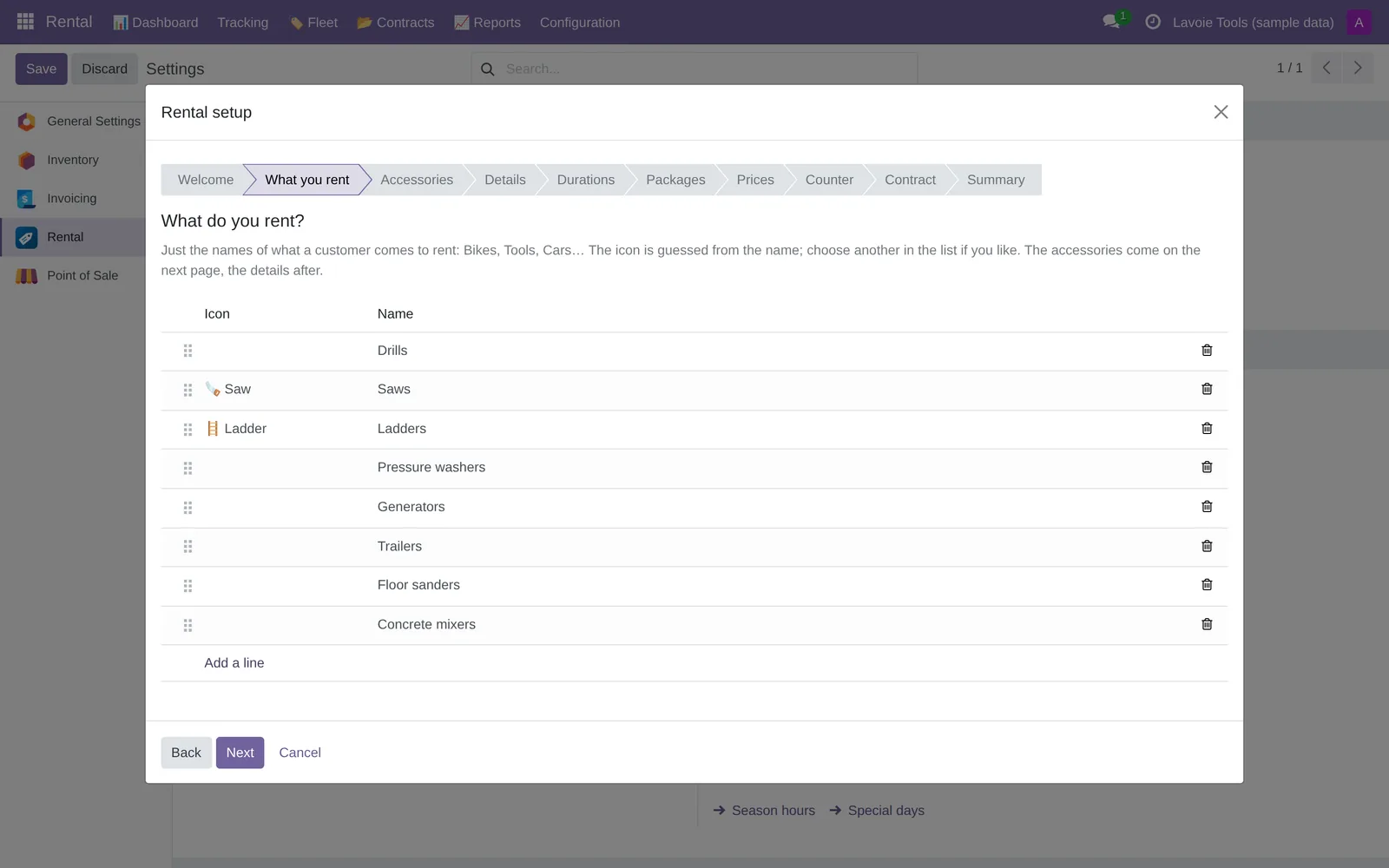
- What you rent: just the names (Bikes, Tools, Trailers…). The icon is guessed.
- Accessories: what goes out with each item (helmet, lock, extension cord…). Each item has its own; an accessory can be shared between two items.
- Details: already filled in (numbered items, counted accessories). The letters of the number give the family:
PE12= drill no. 12. Tiers by named size (child, junior, adult) or by measurement. - Durations: the buttons the clerk sees (4 hours, day, weekend, week, month…). “Chosen at the counter” durations use the best combination of the others.
- Packages (optional): one fixed price for an item and its accessories.
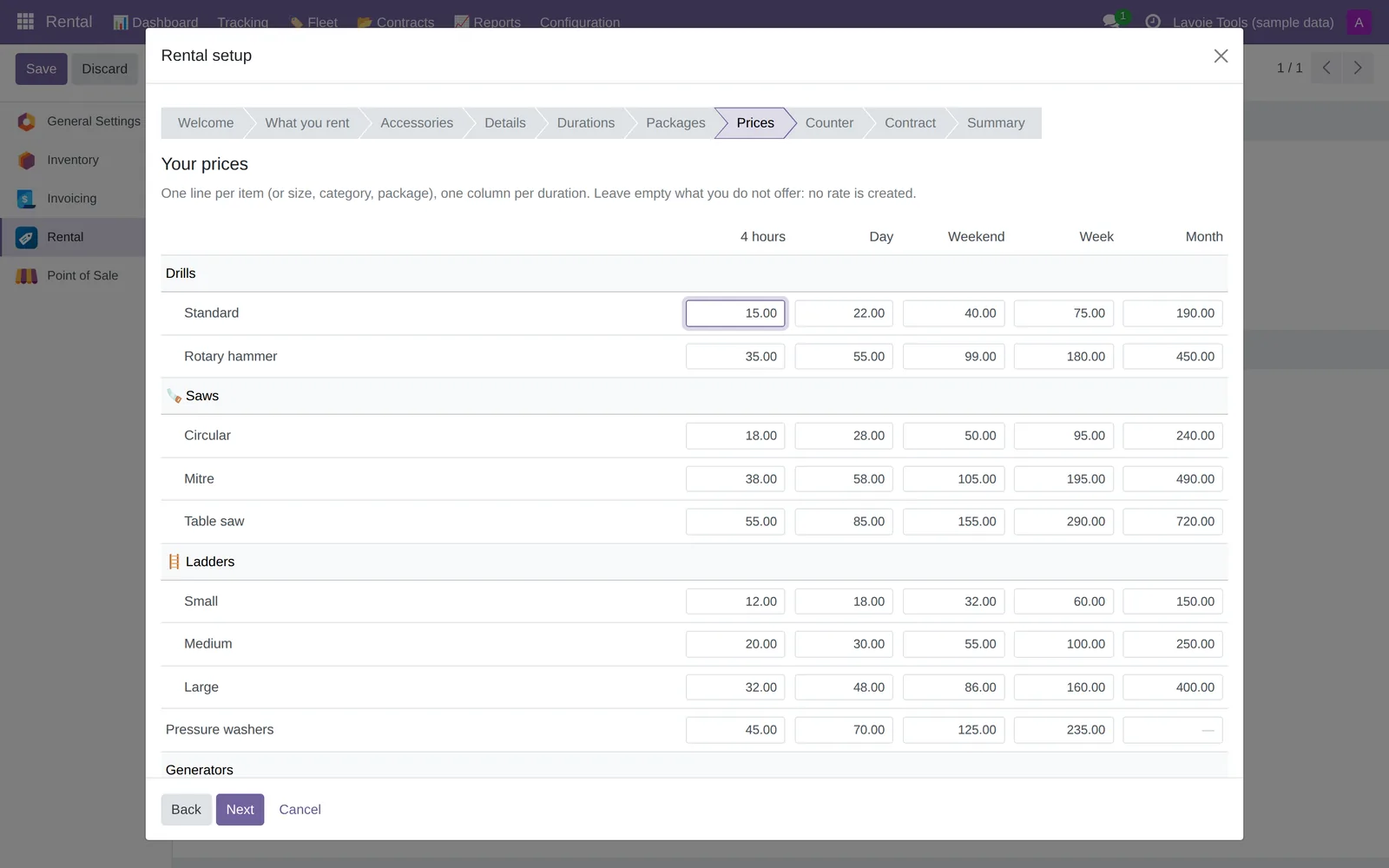
- Prices: one line per item, one column per duration. Empty = not offered.
- Counter: the point of sale and the closing time (a rental in hours never comes back after closing).
- Contract: the guarantee written by hand on the store copy, the conditions and the privacy notice (Quebec, Canada and Europe templates, to be checked by your advisor).
- Summary: Download a sample contract (PDF), then Create.
Step 3
Number the fleet and print labels
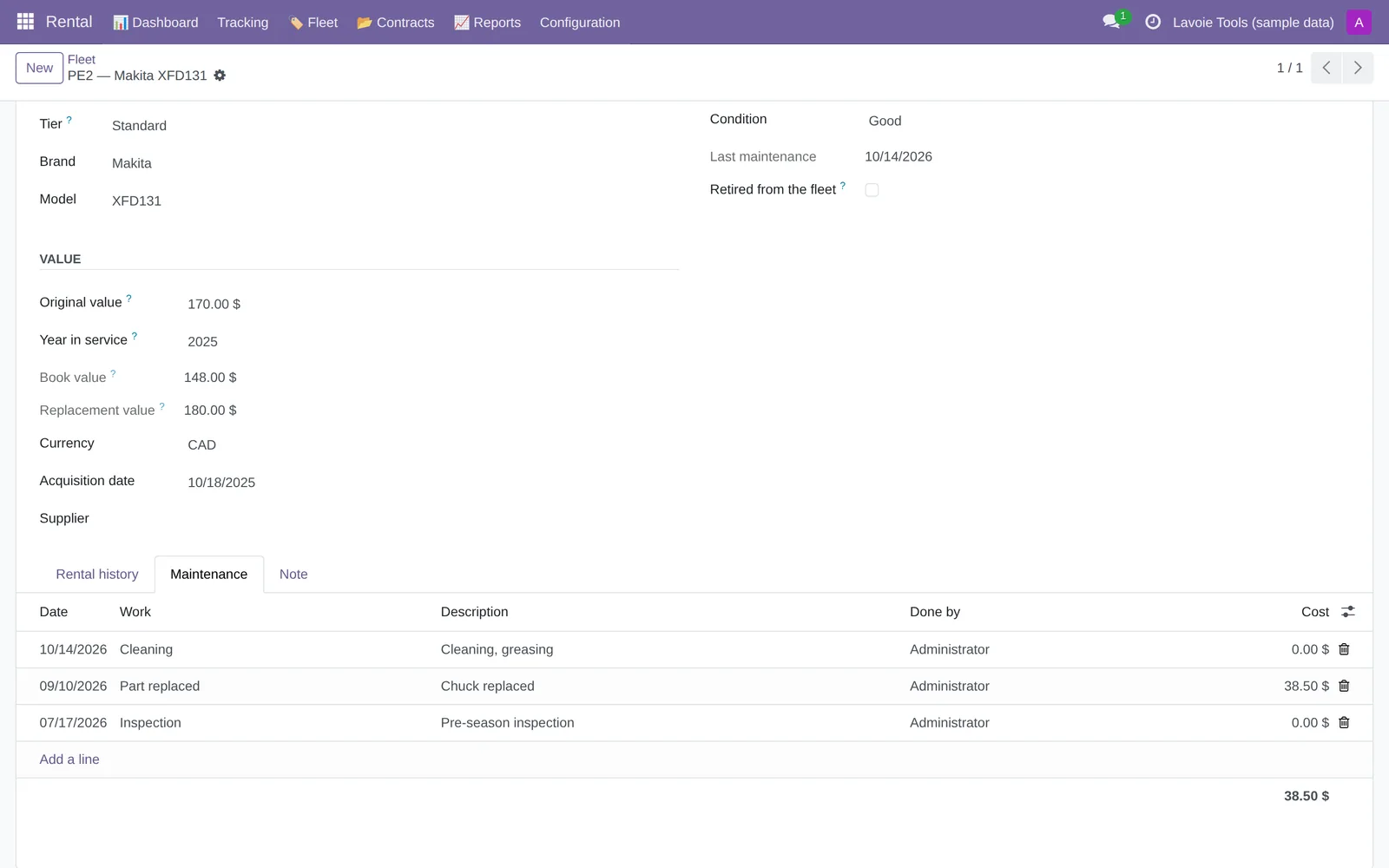
- Rental → Fleet → New: type the number written on the item (
PE12). The family and tier are found from the letters. Add brand, model, replacement value. - Many items: Rental → Configuration → Import the inventory (Excel).
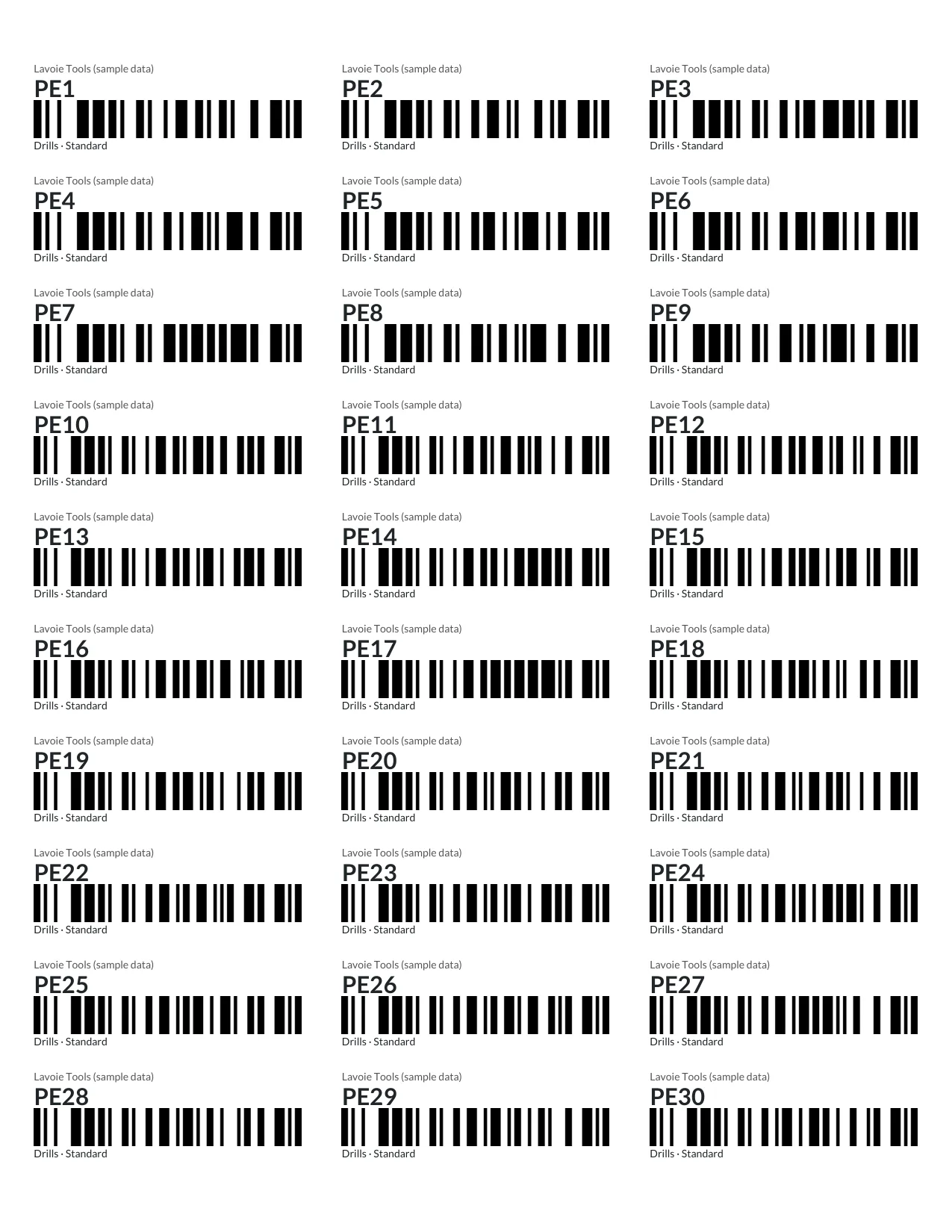
- Labels: in Fleet, tick the items, then Print → Labels (Avery 5160 sheet) (30 per page) or Labels (label printer) (57 × 32 mm). The scanner reads the barcode and types the number at the counter.
Step 4
Rent at the counter
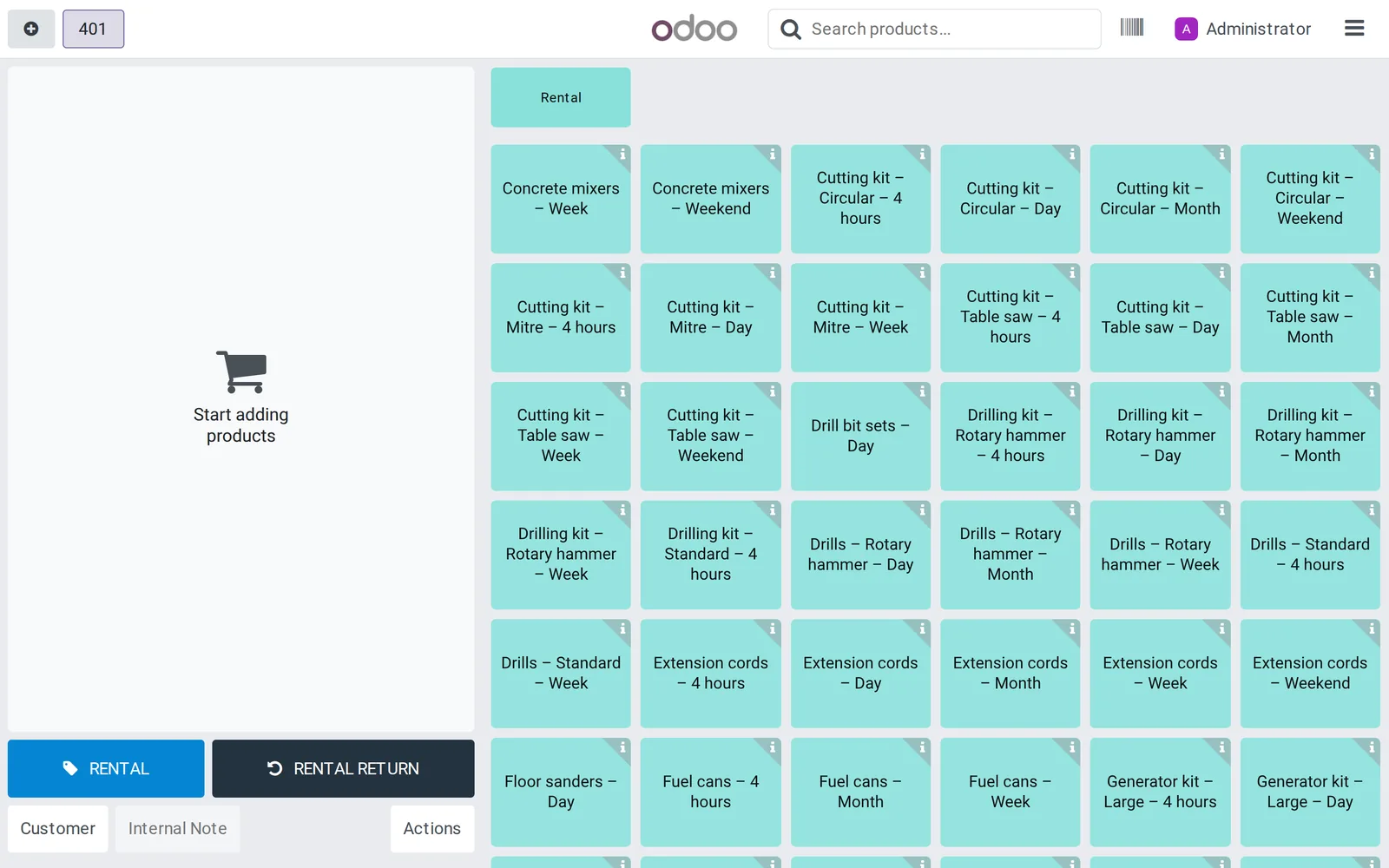
- Open the register: RENTAL and RENTAL RETURN are under the cart. (Elsewhere? Settings → Rental buttons: “On the counter screen” or “In the Actions window”.)
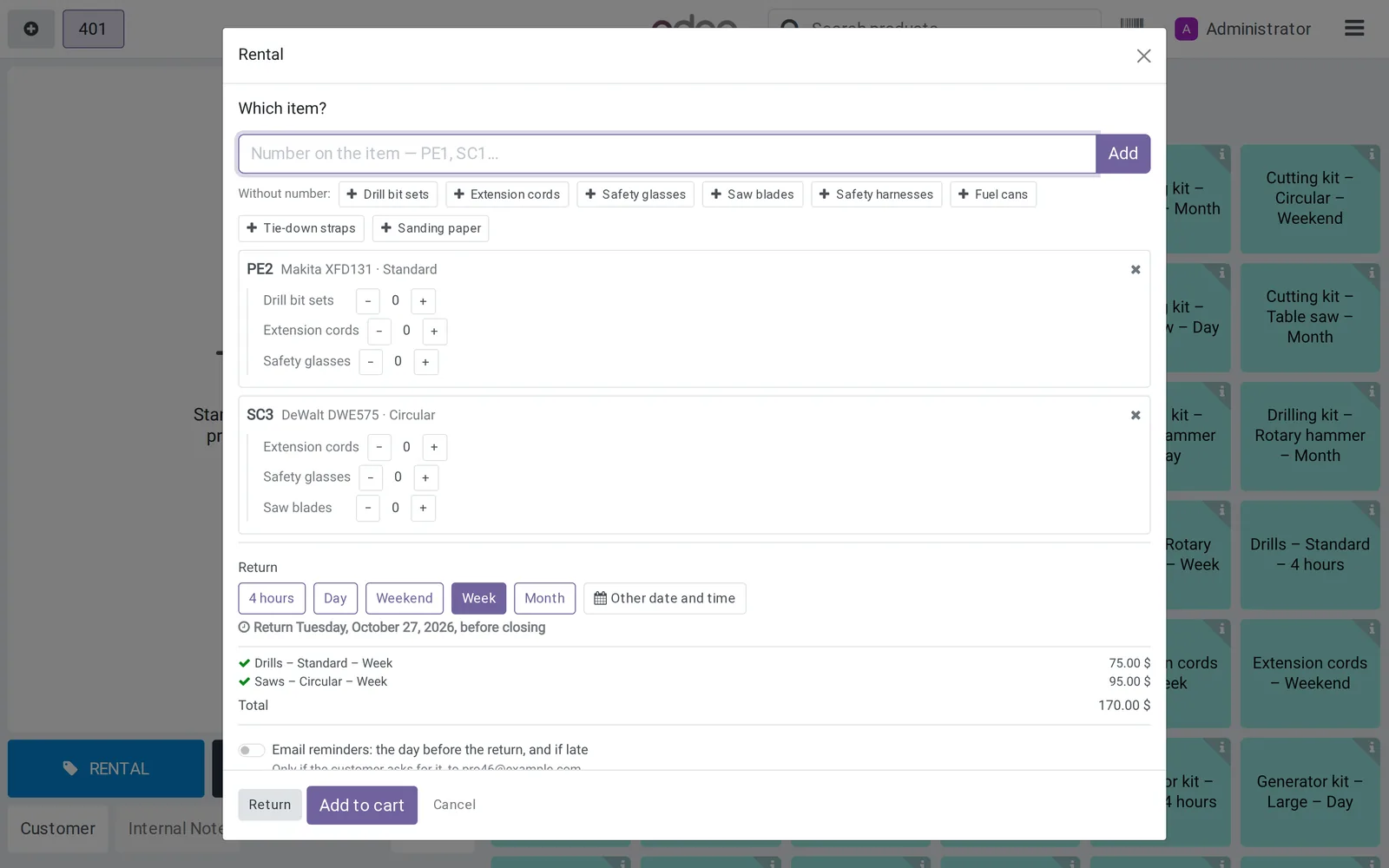
- RENTAL → Which item?: type or scan the numbers. Items without a number are added in one click (Without number:), accessories with + and −.
- Pick the Return (4 hours, day, week… or Other date and time). The return date is shown and the cheapest rate is computed, packages and combinations included.
- Pick the customer. Email reminders (the day before the return, and if late) are sent only if the customer agrees: the box is unticked by default.
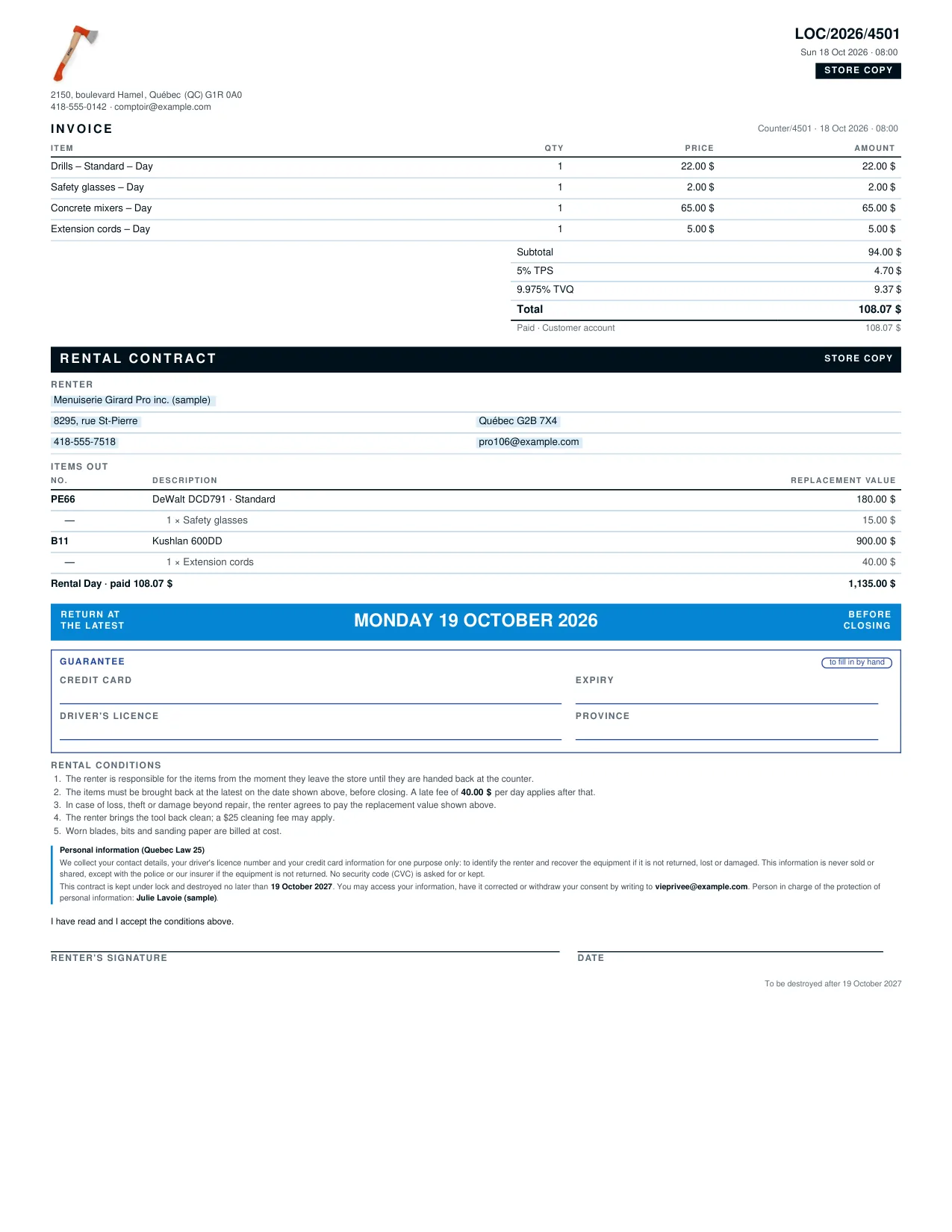
- Add to cart, then Payment. The contract is created at payment and prints with the invoice.
Step 5
Take a return
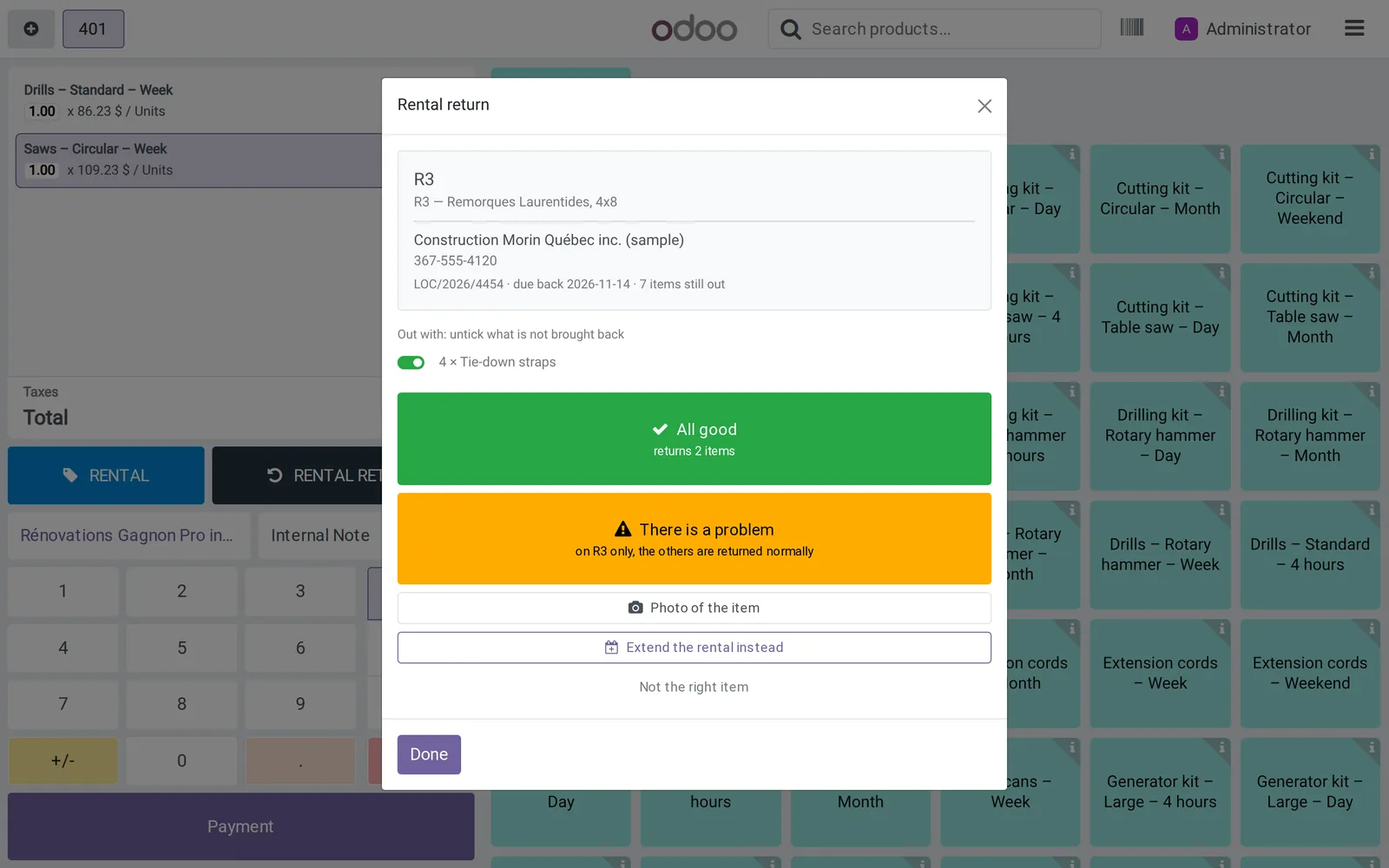
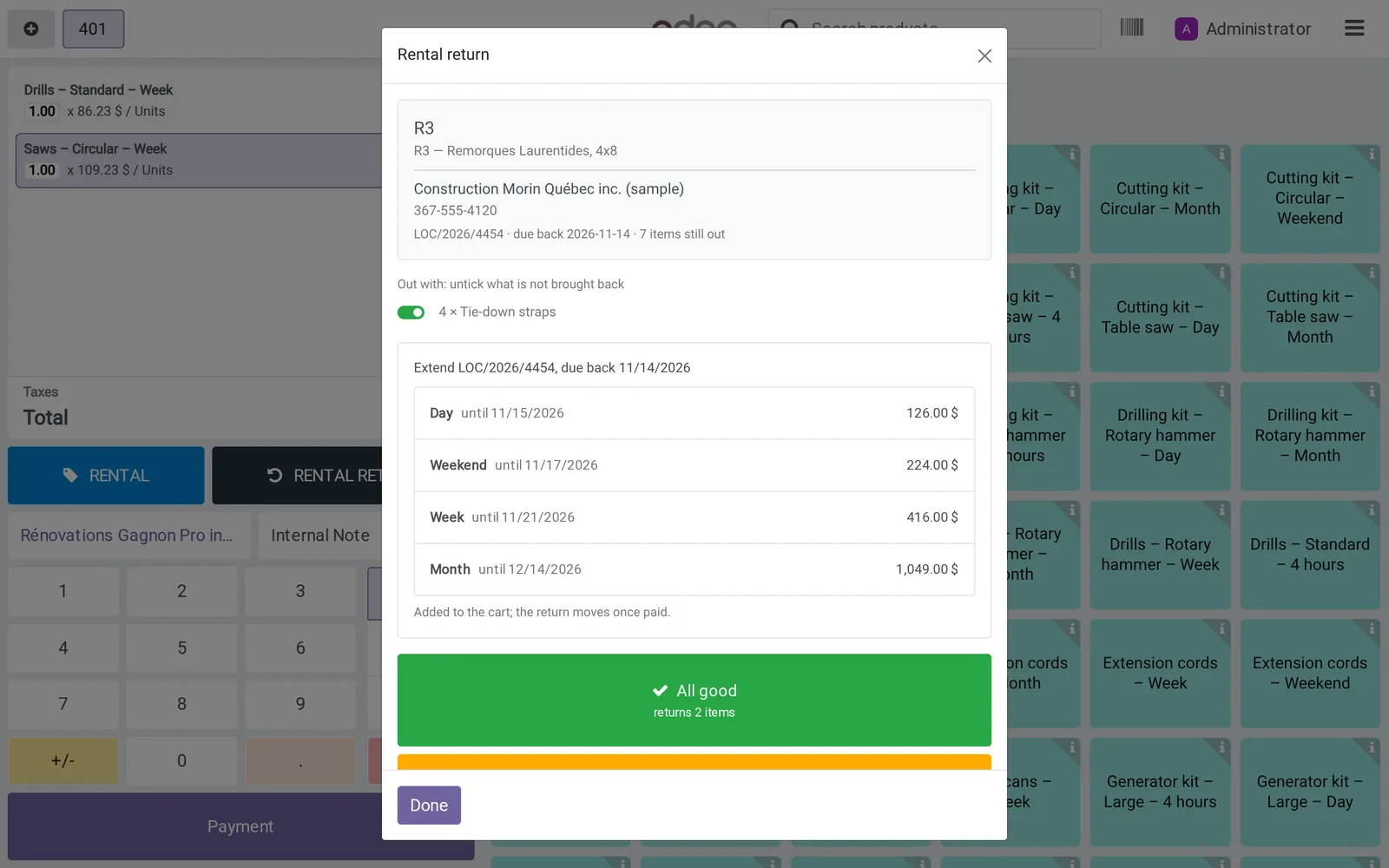
- RENTAL RETURN: type a number, a customer name or a contract number. Everything checked out together comes up.
- Untick what is not brought back, then All good; or There is a problem to note damage on one item only. Photo of the item if needed.
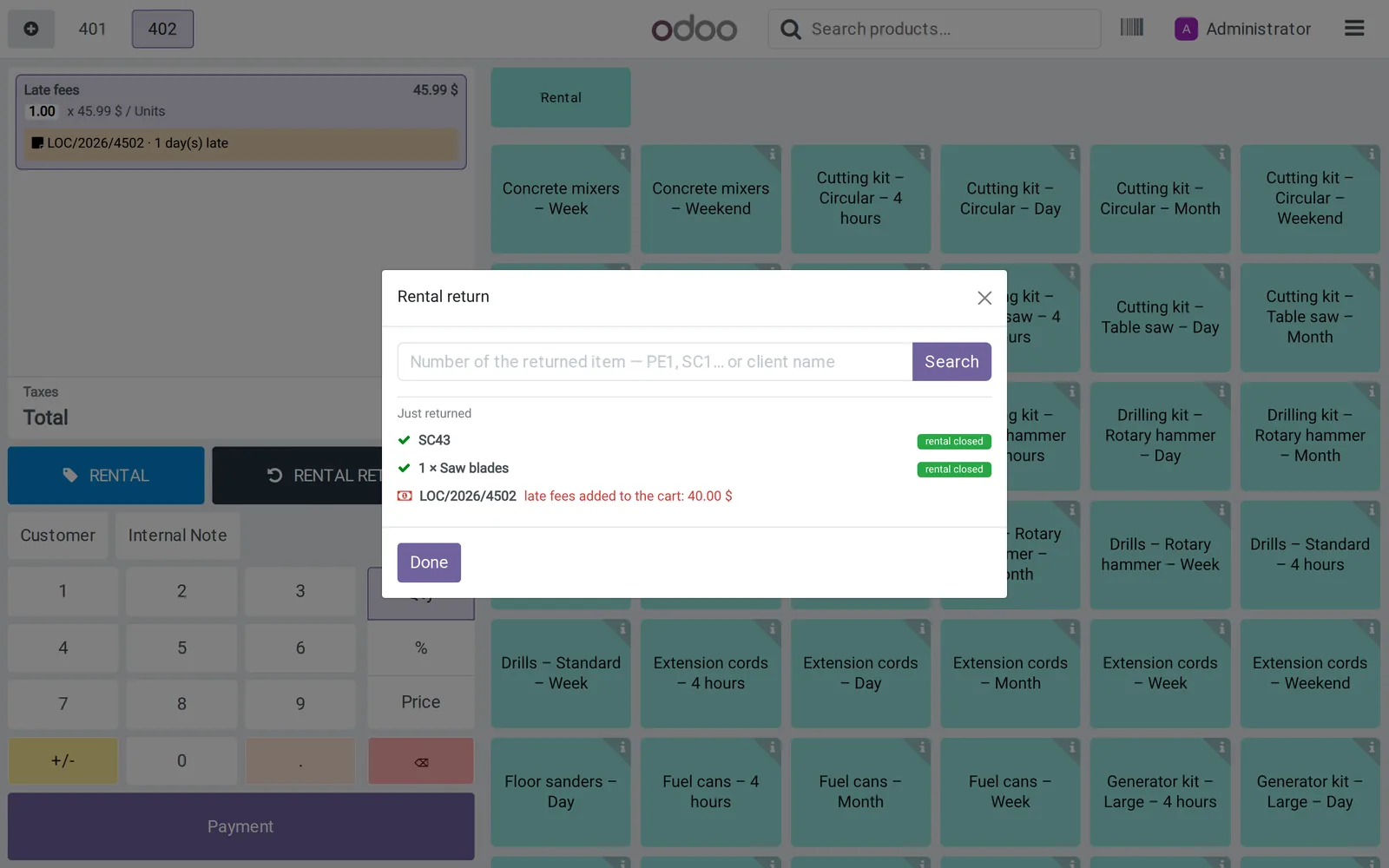
- Late? The late fees go straight to the cart; the clerk can remove them or change the price.
- Keeping it longer? Extend the rental instead: each duration with its new date and price, on the same contract.
- No network? The return is recorded on the device and sent when the connection is back.
Every day
Dashboard and reports
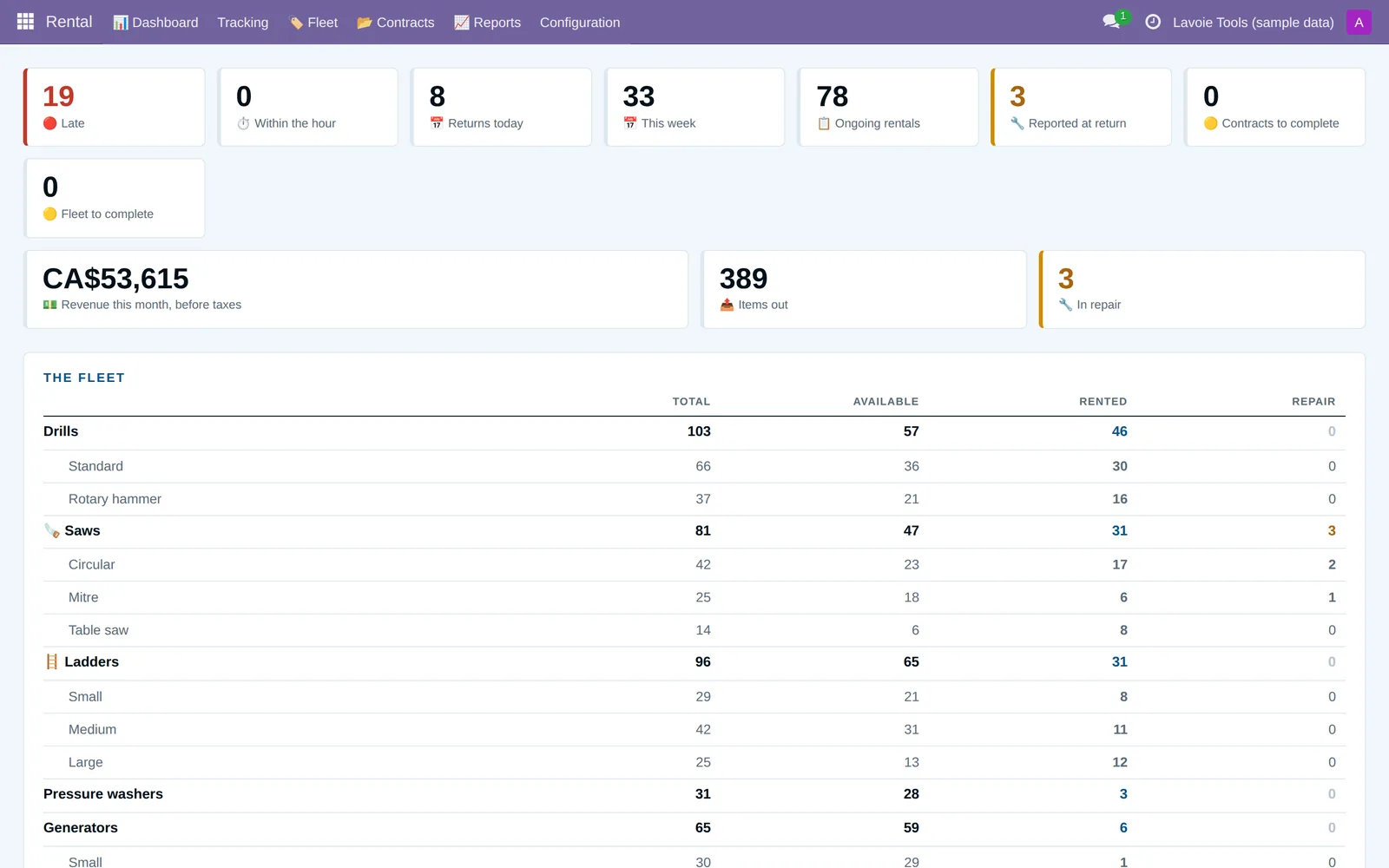
- Rental → Dashboard: late rentals, today's returns, month's revenue, fleet by family.
- Tracking: Late, Contracts to complete, Fleet to complete, Reported at return, Maintenance (log per item, with the cost).
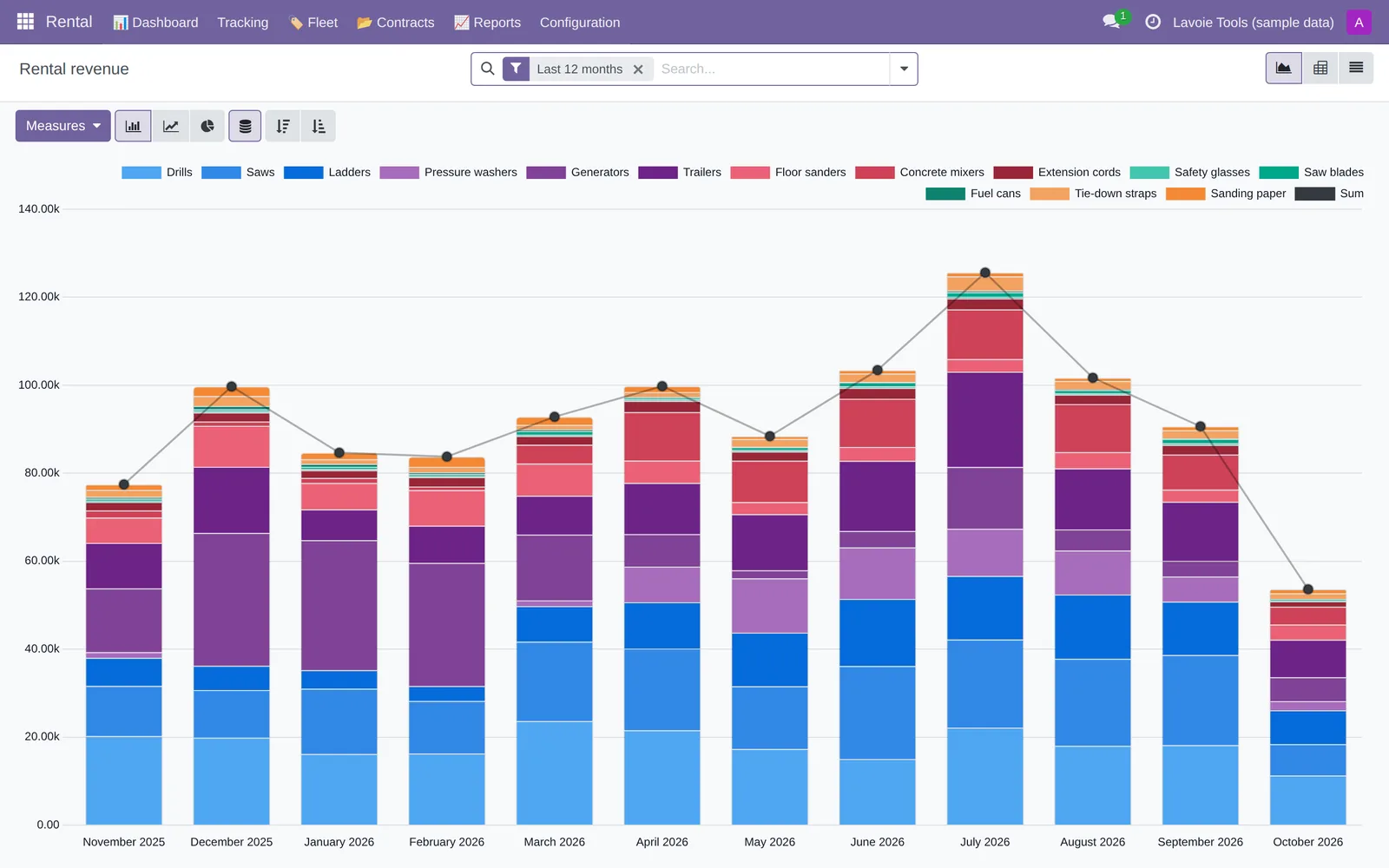
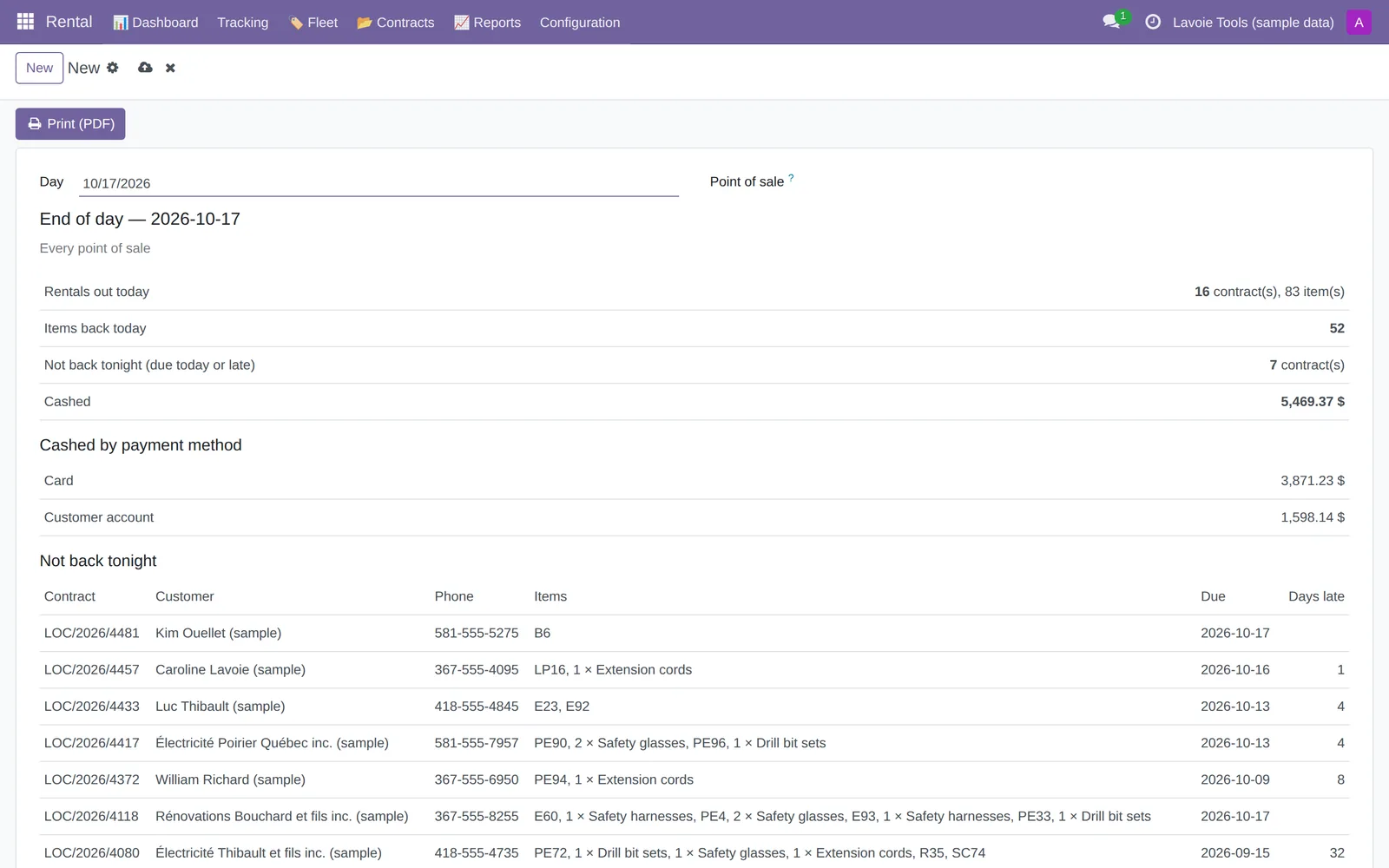
- Reports: Rental revenue, Fleet occupancy, Usage by item, Detailed inventory, Annual inventory, Inventory counts, Late rentals, Returns with a problem, Customers, End of day (screen and PDF).
- Who sees what: Settings, report by report, “Counter staff” or “Accounting”.
Good to know
Before you start
- After changing a setting, close and reopen the register from the Point of Sale dashboard: an open register keeps the old settings.
- No card or licence number is typed into Odoo: the guarantee is written on the store's paper copy. Expired contracts are anonymized every night.
- A question or a bug? info@solutionprevostti.com, or the support button on the App Store page. Hosting and customization: see the Equipment rental software page.
Odoo is a trademark of Odoo S.A. Solution Prévost TI is not affiliated with Odoo S.A. The screenshots show a fictitious store, “Outils Lavoie”, with sample customers.